Reports
The Reports page lists generated reports available to the selected account. It includes daily and weekly triage reports and monthly security reports. Select View in a report row to open its PDF in a new tab, or email one or more selected reports.
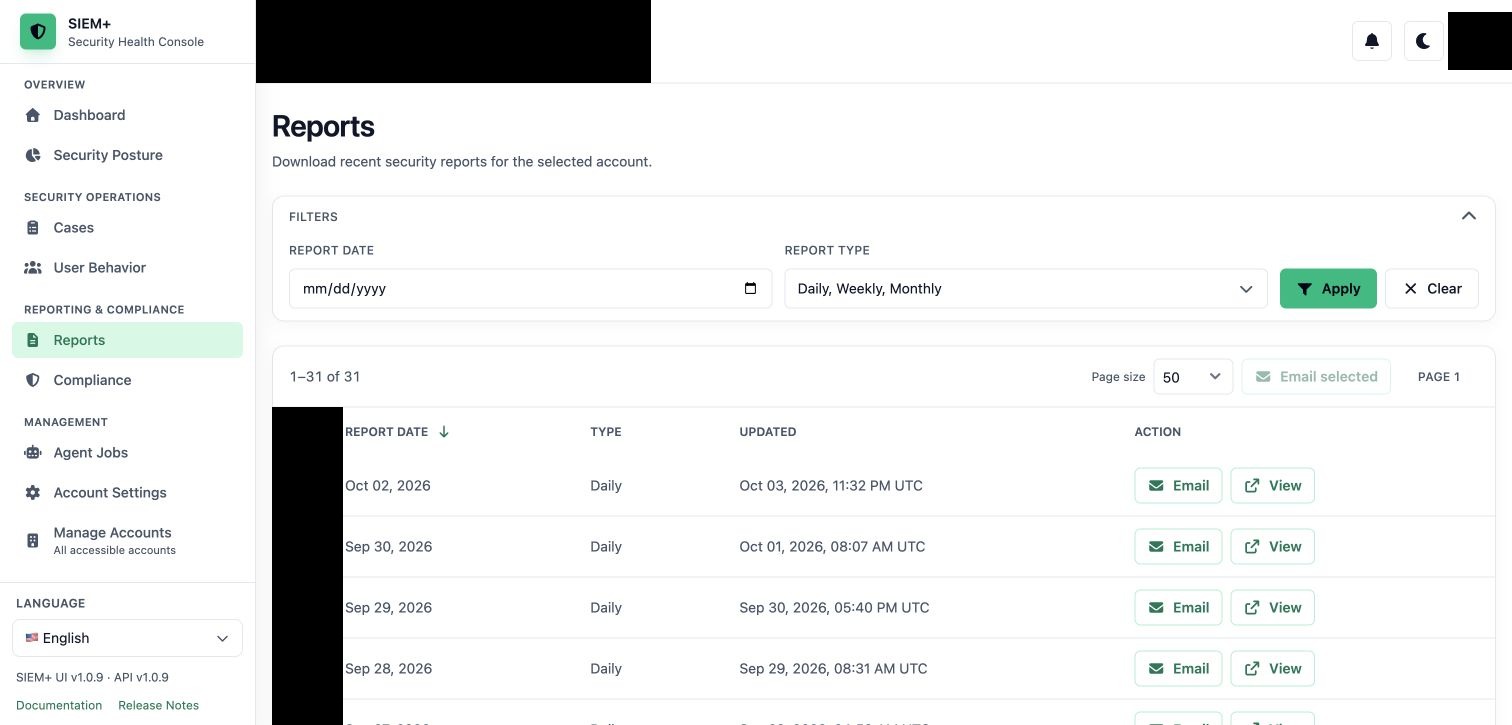
SIEM+ 1.0.9 Reports page with date and report-type filters expanded; account and personal identifiers are masked.
Filter and review reports
Expand Filters and set a report date and one or more report types (Daily, Weekly, or Monthly), then select Apply. The report language follows your current interface language and the list reloads when you change it; there is no separate language filter. Use the sortable table and page-size selector to find a report. Select View to open the PDF in a new tab.
Email reports
Select one or more reports, choose Email or Email selected, and enter one or more recipient addresses. You can email up to 10 reports at a time. Separate multiple addresses with commas or semicolons, or select an account user from the recipient list. You can also edit the subject and Markdown message before sending. Notification language follows the per-account Report language preference in My settings when the deployment has email delivery enabled.
Step-by-step: find and email a report
- Confirm the selected account.
- Expand Filters, choose a report date if needed, select the required report types, then choose Apply. Choose Clear to restore the default filters. The report language follows the current interface language.
- Select View in a report row to open its PDF in a new tab, or select the check box for each report you want to send.
- Choose Email for one row or Email selected for the selected group.
- In Recipient, select an account user or enter addresses separated by commas or semicolons.
- Review or edit the subject and Markdown message. The preview below the message shows how the Markdown will render.
- Choose Send and wait for the success notice.
The recipient receives the selected reports when email delivery is enabled. An empty list can mean that no report data has been generated for the selected account or that you do not have access to it.
Automated report notifications
SIEM+ can send scheduled notifications for newly available reports, current score reports, and auditor reports. Score and audit notifications generate a fresh PDF immediately before sending, so the attachment reflects the current data. Email subjects identify whether the attachment is a score or audit report. The audit notification runs by default every Friday at 12:00 UTC; an administrator can expose or change the schedule through the relevant agent configuration.
Accounts can also receive scheduled case-summary emails when the case-summary notification agent is enabled. These notifications use the account’s notification recipients and language preferences.
Report types and compliance history
The archive can include daily and weekly triage reports and monthly security reports. Which reports appear depends on the data generated for the selected account. Opening or emailing a listed report uses its validated report data.
Administrators can use Choose report version on Compliance to select a previous compliance report date. The Security Posture page can also expose multiple score versions for a selected date. Treat the selected date and version as part of the evidence record when sharing a report.
An empty list can mean that no report data has been generated for the selected account or that you do not have access. Contact an administrator with the account name and report date.